
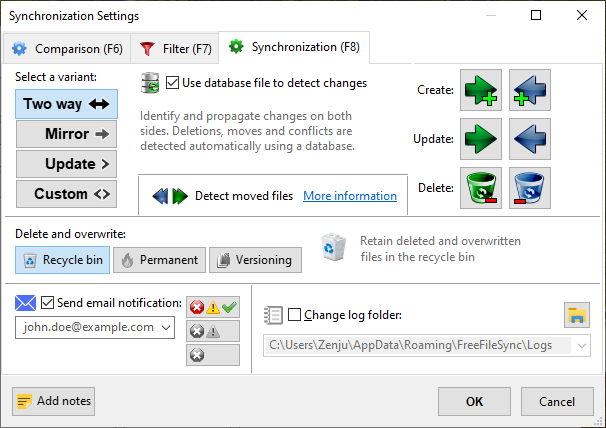
What is FreeFileSync?
FreeFileSync is a free, open-source file synchronization and backup software that helps users protect their data by creating backups and synchronizing files across different locations. It is designed to be flexible and customizable, making it a popular choice among IT teams and individuals looking for a reliable backup solution.
Main Features
Some of the key features of FreeFileSync include:
- File synchronization: FreeFileSync allows users to synchronize files across different locations, including local folders, network shares, and cloud storage services.
- Backup: FreeFileSync can create backups of files and folders, including incremental backups and versioning.
- Encryption: FreeFileSync supports encryption, allowing users to protect their data with passwords and encryption algorithms.
- Real-time monitoring: FreeFileSync can monitor files and folders in real-time, detecting changes and synchronizing files as needed.
Why Backups Fail at Night
Common Issues
Despite the importance of backups, many backups fail due to a variety of reasons. Some common issues include:
- Hardware failure: Hard drives and other storage devices can fail, causing backups to fail.
- Software issues: Backup software can malfunction or encounter errors, causing backups to fail.
- Network connectivity: Network connectivity issues can prevent backups from completing successfully.
- Human error: Human error, such as forgetting to run backups or configuring them incorrectly, can also cause backups to fail.
Solutions
To overcome these issues, IT teams can use FreeFileSync to create air-gapped copies and encrypted repositories. Air-gapped copies are backups that are stored on a separate device or location, disconnected from the main network. Encrypted repositories are backups that are encrypted, making them inaccessible to unauthorized users.
Air-Gapped Copies and Encrypted Repositories Guide
Creating Air-Gapped Copies
To create air-gapped copies using FreeFileSync, follow these steps:
- Install FreeFileSync on the machine where you want to create the backup.
- Configure the backup settings, including the source and destination folders.
- Select the option to create an air-gapped copy.
- Choose a location for the air-gapped copy, such as an external hard drive or a separate network share.
Creating Encrypted Repositories
To create encrypted repositories using FreeFileSync, follow these steps:
- Install FreeFileSync on the machine where you want to create the backup.
- Configure the backup settings, including the source and destination folders.
- Select the option to encrypt the repository.
- Choose an encryption algorithm and password.
Download FreeFileSync Free
Getting Started
FreeFileSync is free to download and use. To get started, follow these steps:
- Visit the FreeFileSync website and download the software.
- Install FreeFileSync on your machine.
- Configure the backup settings, including the source and destination folders.
- Start the backup process.
FreeFileSync Alternative
Other Options
While FreeFileSync is a popular choice among IT teams and individuals, there are other backup and synchronization software options available. Some alternatives include:
- Duplicati
- Areca Backup
- Backblaze
Conclusion
In conclusion, FreeFileSync is a powerful and flexible backup and synchronization software that can help IT teams and individuals protect their data. By creating air-gapped copies and encrypted repositories, users can ensure that their data is safe and secure. With its ease of use and customization options, FreeFileSync is a popular choice among those looking for a reliable backup solution.