
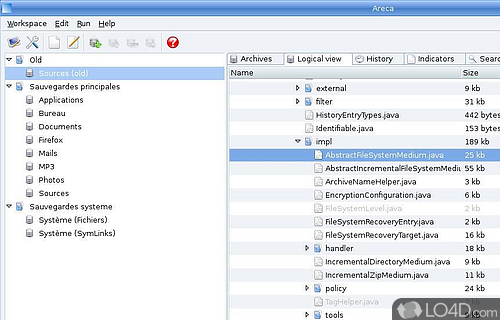
What is Areca Backup?
Areca Backup is a free, open-source backup solution designed to help individuals and organizations protect their data from loss or corruption. With its robust feature set and user-friendly interface, Areca Backup has become a popular choice among IT professionals and individuals looking for a reliable backup solution.
One of the key benefits of Areca Backup is its ability to create air-gapped copies and encrypted repositories, ensuring that backups are both secure and tamper-proof. Additionally, Areca Backup provides advanced features such as retention policies, offsite replication, and integrity checks, making it an ideal solution for organizations with complex backup needs.
Key Features
Some of the key features of Areca Backup include:
- Support for multiple backup destinations, including local disks, network shares, and cloud storage services
- Advanced encryption options, including AES-256 and Two-Fish
- Support for incremental and differential backups
- Automatic pruning of old backup files
- Advanced reporting and notification options
Why Backups Fail at Night
Despite the importance of backups, many organizations still experience backup failures, particularly at night when systems are under heavy load. Some common reasons for backup failures include:
Common Causes of Backup Failures
Some common causes of backup failures include:
- Insufficient disk space
- Network connectivity issues
- Corrupted backup files
- Incorrect backup settings
- Hardware failures
By understanding the common causes of backup failures, organizations can take steps to prevent them and ensure that their backups are successful.
Installation Guide
Installing Areca Backup is a straightforward process that can be completed in just a few steps.
Step 1: Download Areca Backup
The first step is to download the Areca Backup installer from the official website.
Once the download is complete, run the installer and follow the prompts to install Areca Backup.
Step 2: Configure Backup Settings
After installation, configure the backup settings to meet your organization’s needs.
This includes setting the backup destination, encryption options, and retention policies.
Air-Gapped Copies and Encrypted Repositories Guide
One of the key features of Areca Backup is its ability to create air-gapped copies and encrypted repositories.
Creating Air-Gapped Copies
To create an air-gapped copy, follow these steps:
- Create a new backup job in Areca Backup
- Select the